How to Create and Manage a Trade Quote
Create a quote on your schedule, choose the pricing that fits your project, and return to saved quotes anytime from My Account.
QUICK OVERVIEW
Add items to cart → Create Quote → Choose pricing → Add shipping details → Review & save → Manage in My Quotes
1. Add products to your cart
Shop as usual and add the products you want to quote to your cart. Your Trade pricing is shown as you browse and on product pages, so you can see your price before you begin the quote.
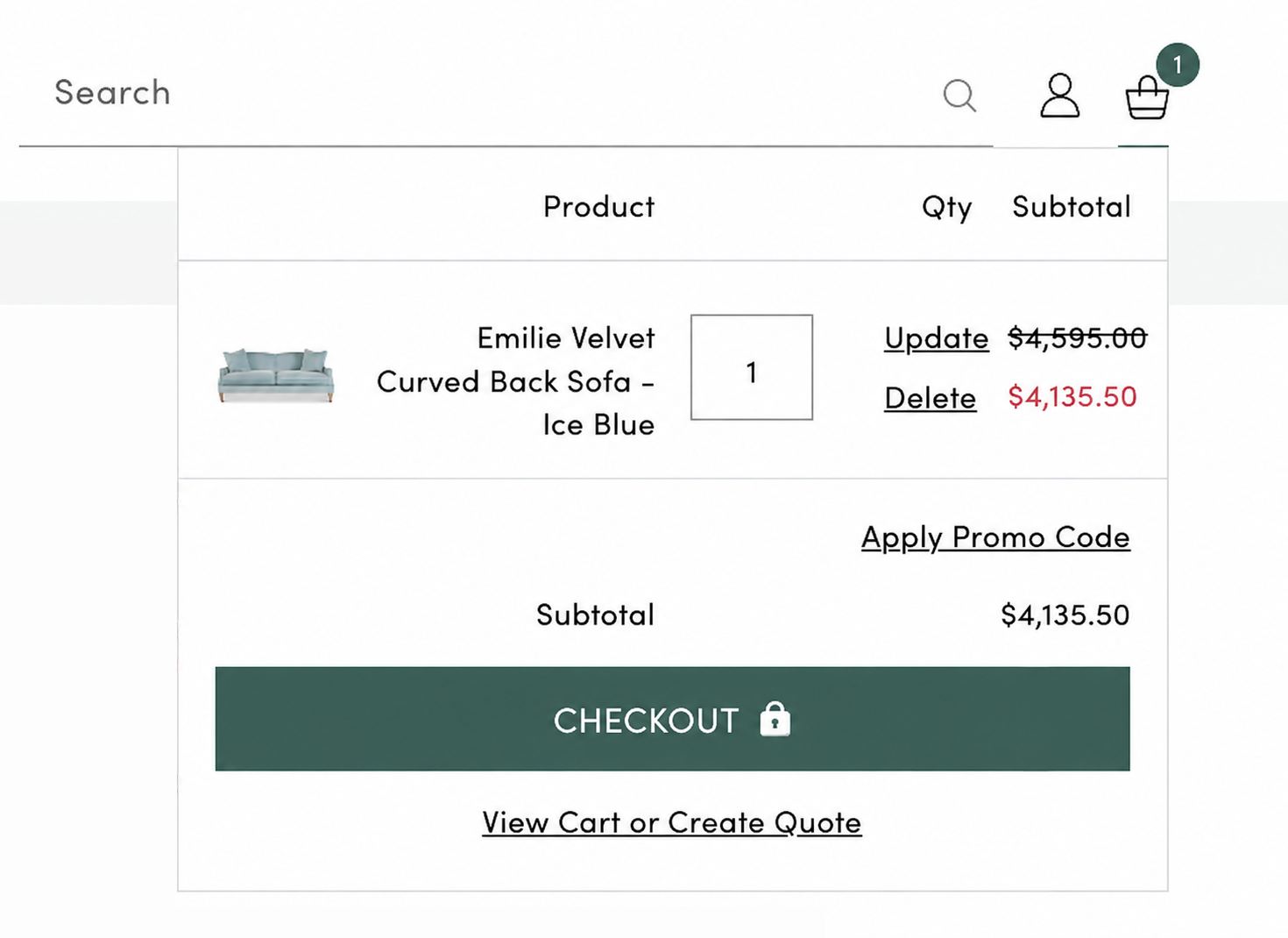
2. Choose “View Cart or Create Quote”
Open your cart and select “View Cart or Create Quote.” On the cart page, you can either continue to checkout or select “Create Quote.”
3. Choose the pricing basis for your project
Select the pricing option that best fits your project timing. You will see your quoted items and subtotal before continuing.
What pricing option should I choose?
CURRENT PROMOTIONAL PRICING
Includes active sale pricing plus your eligible Trade discount. Best for projects ready to move while the current promotion is active. Promotional pricing is valid through the quote expiration date shown.
STANDARD TRADE PRICING
Uses your standard Trade pricing and is valid for 30 days, making it ideal for longer-term project planning or client budgeting. If you convert your saved quote to an order while a promotion is active, eligible promotional pricing will still be applied at checkout.
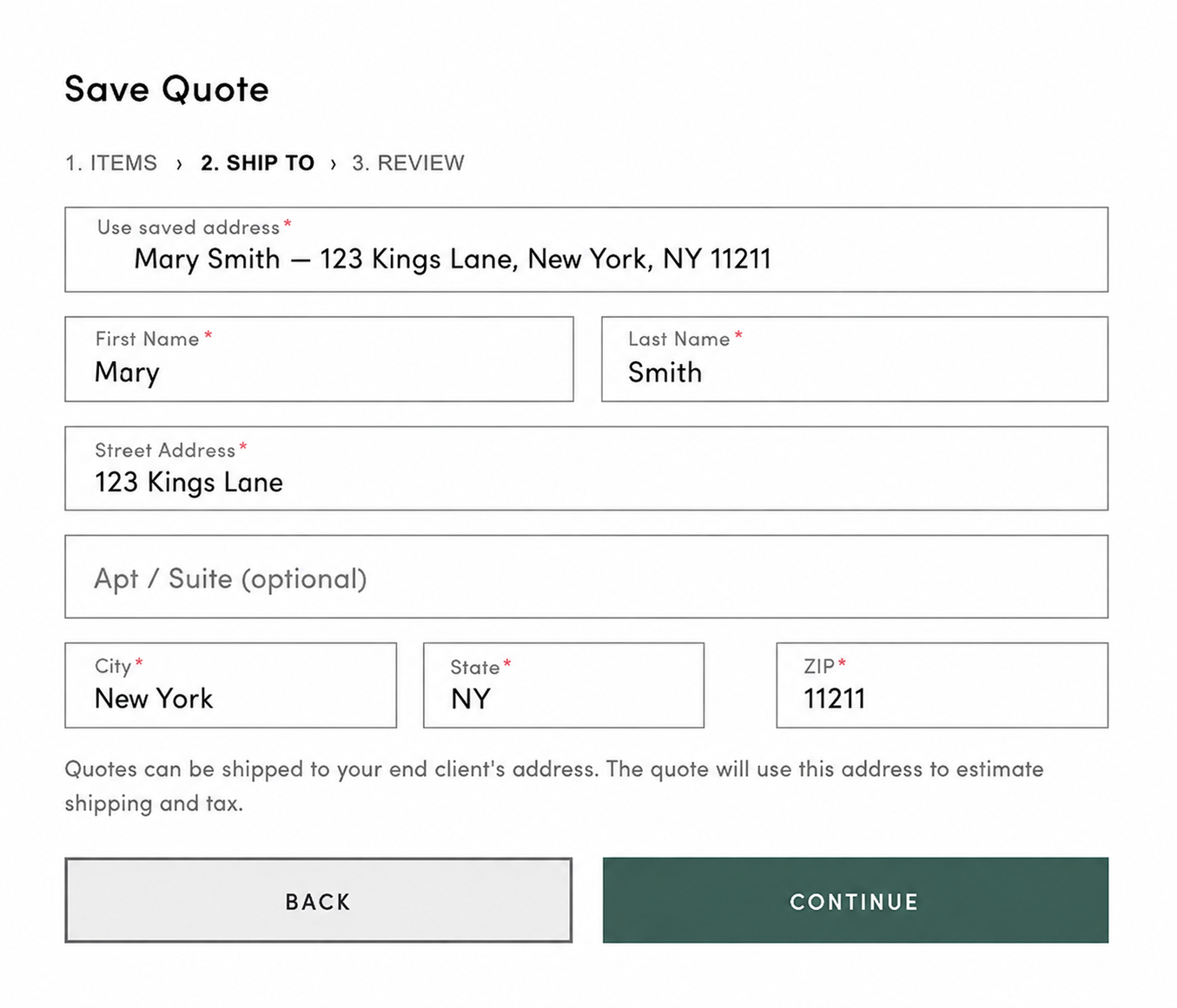
4. Add shipping details
Enter the ship-to address for the project or end client. The address is used to estimate shipping and tax for the quote.
5. Review and save your quote
Review the quote details, expiration date and subtotal. You can also add optional notes, customer name, company name and customer email before selecting “Save Quote.” Items are not reserved until an order is placed. Shipping and tax are estimated and finalized at checkout.
6. Download and share your saved quote
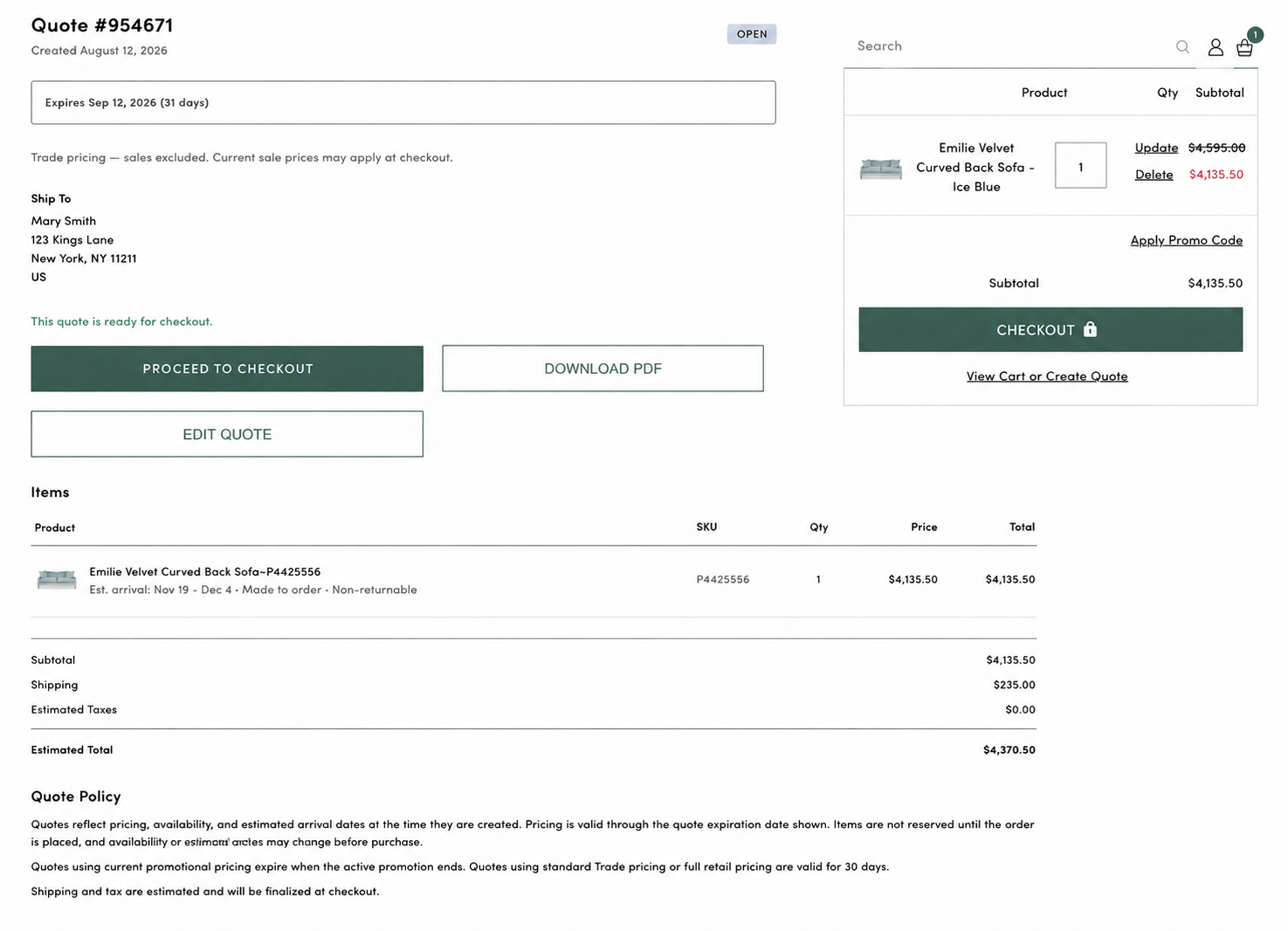
Once saved, your quote will have its own quote number and expiration date. From the quote page, you can adjust product quantities, remove items, download a PDF to save or share with your client, or proceed to checkout.
If you need to add new products, change the shipping address, or make other updates, you’ll need to create a new quote.
7. Find and manage your saved quotes
Once logged in, select the account icon at the top of the site and choose My Quotes from the dropdown to view your saved quotes.
From My Quotes, you can open a saved quote to review the details, adjust quantities, remove items, download a PDF, or proceed to checkout.
Self-service when you want it. Expert support when you need it.
Use the quoting tools to manage everyday project needs on your schedule. And when a project calls for more support, your Trade team is here to help with product sourcing, quotes and swatches, bulk orders, delivery questions, and more.
TRADE CONCIERGE
Log in to your account
Log in to access your account and enjoy exclusive benefits
New to One Kings Lane?